Specify Processes
In this section, additional calculation elements required to calculate the costs will be inserted into and specified within the inserted processes for the "Motor Shaft".
Sequence
Specify "Setup Process - Turning"
-
In the Structure view, select
 "Setup Process - Turning".
 - Insert the
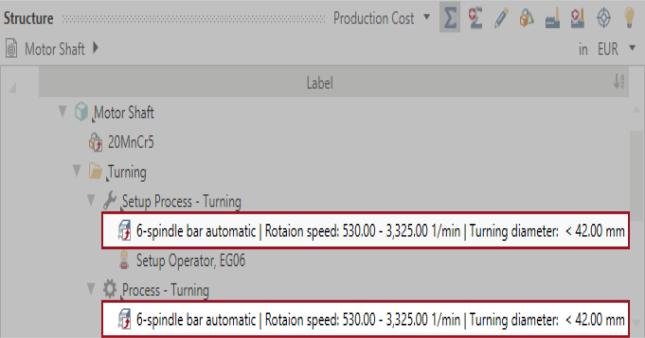
 machine from the FACTON Benchmark data with the label "6-spindle bar automatic | Rotation speed: 530.00 - 3,325.00 1/min | Turning diameter: < 42.00 mm".
-
In the Structure view, select
"Setup Process - Turning". -
In the ribbon, click on Edit > Insert >
 Setup Operator to insert a setup operator.
 - In the Details view > General Properties
 view scheme (combobox), enter values for the following properties:
Comment Fitter Calculation Labor Group Skilled Number of Workers 2 Tie Up Rate at Process 50 %
For multiple use of a previously inserted global project element (e.g. the same machine, since the investment costs should only be introduced to the calculation once) you can insert these as follows:
Reuse Global Calculation Elements Multiple Times
- You are logged in as a Calculator.
- You are in the Calculations workspace.
- You have opened a calculation.
- You are in the Structure view.
- In the Structure view, select the global calculation element you wish to reuse.
- Click in the first empty field in front of the calculation element and drag & drop it.
- while pressing ALT to insert the global calculation element again as Link (see Insert Global Calculation Element).
The mouse cursor displays the following icon:

or
- CTRL to insert the global calculation element again as Copy.
The mouse cursor displays the following icon:

- while pressing ALT to insert the global calculation element again as Link (see Insert Global Calculation Element).
Specify "Process - Turning"
-
Insert the same
 machine as in the "Setup Process - Turning" as Link to reuse the machine.
Reuse Global Calculation Elements Multiple Times
- You are logged in as a Calculator.
- You are in the Calculations workspace.
- You have opened a calculation.
- You are in the Structure view.
- In the Structure view, select the global calculation element you wish to reuse.
- Click in the first empty field in front of the calculation element and drag & drop it.
- while pressing ALT to insert the global calculation element again as Link (see Insert Global Calculation Element).
The mouse cursor displays the following icon:
or
- CTRL to insert the global calculation element again as Copy.
The mouse cursor displays the following icon:
- while pressing ALT to insert the global calculation element again as Link (see Insert Global Calculation Element).
-
In the Structure view, select
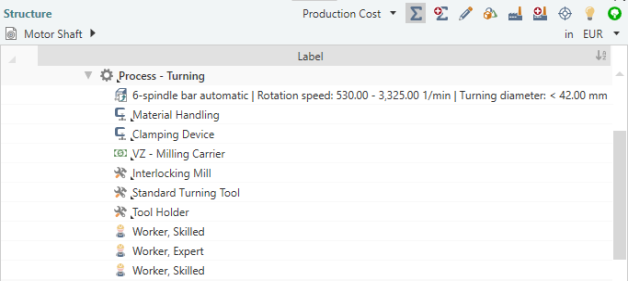
 "Process - Turning".
 -
In the ribbon, click on Edit > Insert >
 Insert New Local Fixture to insert a local fixture.
 - In the Details view > General Properties view scheme (combobox), enter values for the following properties:
Name Material Transport Equipment is specific 
Calculation > Number of Fixtures Equipment Is Used Over Production Lifetime 
Lifetime 150,000 cycles Calculation > Investment Purchase Value 2,000 EUR Incidental Acquisition Cost 200 EUR -
In the Structure view, select
"Process - Turning". -
In the ribbon, click on Edit > Insert >
Insert New Local Fixture to insert a local fixture. - In the Details view > General Properties view scheme (combobox), enter values for the following properties:
Name Clamping Device Equipment is specific Calculation > Number of Fixtures Equipment Is Used Over Production Lifetime Lifetime 430,000 cycle Calculation > Investment Purchase Value 1,000 EUR Incidental Acquisition Cost 100 EUR -
In the Structure view, select
"Process - Turning". -
In the ribbon, click on Edit > Insert >
 Insert New Local Special Direct Cost to insert a local special direct cost.
 - In the Details view > General Properties view scheme (combobox), enter values for the following properties:
Name VZ – Milling Carrier Calculation Number of Units 1 Costs per Unit 4.800 EUR -
In the Structure view, select
"Process - Turning". - In the ribbon, click on Edit > Insert >
 Insert New Local Tool to insert a local tool.
 - In the Details view > General Properties view scheme (combobox), enter values for the following properties:
Name Interlocking Milling Equipment is specific Calculation > Investment Purchase Value 800 EUR -
In the Structure view, select
"Process - Turning". - In the ribbon, click on Edit > Insert > Insert New Local Tool to insert a local tool.
- In the Details view > General Properties view scheme (combobox), enter values for the following properties:
Name Standard Turning Tool Equipment is specific Calculation > Number of Tools Equipment Is Used Over Production Lifetime Lifetime 350,000 cycle Calculation > Investment Purchase Value 50 EUR -
In the Structure view, select
"Process - Turning". - In the ribbon, click on Edit > Insert > Insert New Local Tool to insert a local tool.
- In the Details view > General Properties view scheme (combobox), enter values for the following properties:
Name Tool Holder Equipment is specific Calculation > Investment Purchase Value 80 EUR -
In the Structure view, select
"Process - Turning". - In the ribbon, click on Edit > Insert >
 Worker to insert a worker.
 - In the Details view > General Properties view scheme (combobox), enter values for the following properties:
Comment Machine operator Calculation Labor Group Skilled Personal Allowance Rate  55 %
55 % -
In the Structure view, select
"Process - Turning". - In the ribbon, click on Edit > Insert > Worker to insert a worker.
- In the Details view > General Properties view scheme (combobox), enter values for the following properties:
Comment Mechanical Engineer Calculation Labor Group Expert -
In the Structure view, select
"Process - Turning". - In the ribbon, click on Edit > Insert > Worker to insert a worker.
- In the Details view > General Properties view scheme (combobox), enter values for the following properties:
Comment QA Running Control Calculation Labor Group Skilled
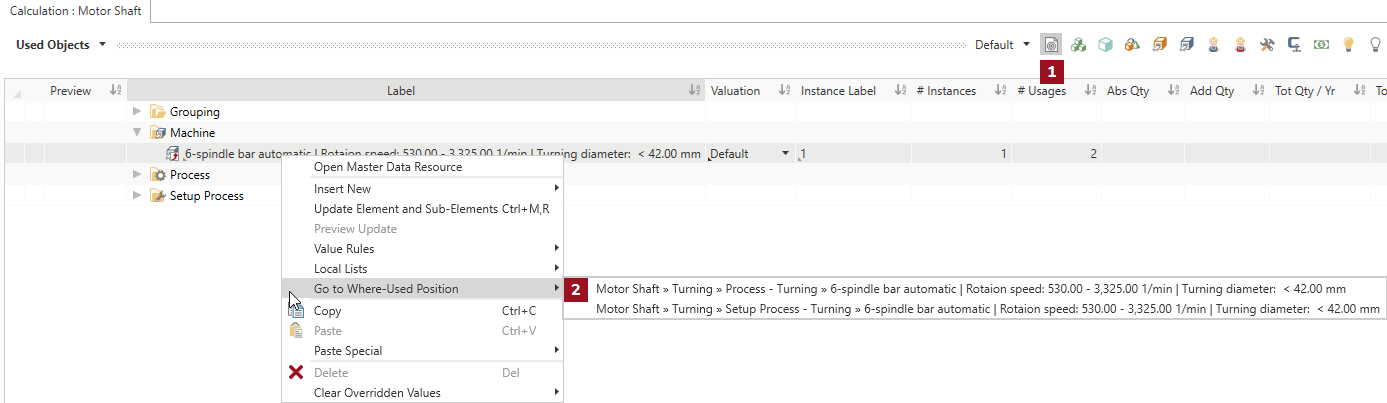
In the Used Objects view, you can verify whether you have used the same machine for "Setup Process - Turning« and »Process - Turning". The following two points indicate this:
 You have two usage counts for the machine "6-spindle bar automatic | Rotation speed: 530.00 - 3,325.00 1/min | Turning diameter: < 42.00 mm".
 When two where-used positions are displayed to you by right-clicking on > Go to Where-Used Position.
Specify Process "Washing"
-
In the Structure view, select
Process "Washing". - Insert the machine with the label "Ultrasonic washing machine | Tub size: 55.00 l" from the master data.
- In the Details > Calculation > Investment view schema (combobox), override the purchase value ( 10,000 EUR) of the machine.
-
In the Structure view, select
Process "Washing". - In the ribbon, click on Edit > Insert > Worker to insert a worker.
- In the Details view > General Properties view scheme (combobox), enter values for the following properties:
Comment Machine operator Calculation Labor Group Skilled Personal Allowance Rate 55 % -
In the Structure view, select
Process "Washing". -
In the ribbon, click on Edit > Insert >
 Insert New Local Technical Measure (Cycle) to insert a local technical measure.
 - In the Details view > General Properties view scheme (combobox), enter values for the following properties:
Name Technical Measure Person responsible John Doe Implementation Time Horizon Mid-Term Implementation Level IL1 – Idea defined Effective from 8/18/2018 Calculation Measure value cycle time 2 s / cycle
Specify Process "Hardening"
-
In the Structure view, select
Process "Hardening". -
In the ribbon, click on Edit > Insert >
Insert New Local Machine to insert a local machine. - In the Details view > General Properties view scheme (combobox), enter values for the following properties:
Name Furnace | max. load: 550 kg Calculation > Investment Purchase Value 190,000 EURInstallation Cost 22,800 EURResidual Value 38,000 EURCalculation > Fixed Machine Cost Depreciation Period 8 a Calculation > Fixed Machine Cost > Fixed Machine Cost - Details Foot print 10 m² Proportionate Area 15 % Calculations > Variable Machine Costs Connected Load 104.80 kW -
In the Structure view, select
Process "Hardening". - In the ribbon, click on Edit > Insert > Worker to insert a worker.
- In the Details view > General Properties view scheme (combobox), enter values for the following properties:
Comment Machine operator Calculation Labor Group Skilled
Specify "Setup Process - Grinding"
-
In the Structure view, select
"Setup Process - Grinding". - Insert the machine with the label "CNC circular grinding machine | Workpiece length: < 550.00 mm" from the master data.
- In the Details > Calculation > Investment view schema (combobox), override the purchase value ( 600,000 EUR) of the machine.
-
In the Structure view, select
"Setup Process - Grinding". -
In the ribbon, click on Edit > Insert >
Setup Operator to insert a setup operator. - In the Details view > General Properties view scheme (combobox), enter values for the following properties:
Comment Fitter Calculation Labor Group Skilled
Specify "Process - Grinding"
-
In the Structure view, select
"Process - Grinding". -
Insert the same machine as in the "Setup Process - Grinding" as Link to reuse the machine.
Reuse Global Calculation Elements Multiple Times
- You are logged in as a Calculator.
- You are in the Calculations workspace.
- You have opened a calculation.
- You are in the Structure view.
- In the Structure view, select the global calculation element you wish to reuse.
- Click in the first empty field in front of the calculation element and drag & drop it.
- while pressing ALT to insert the global calculation element again as Link (see Insert Global Calculation Element).
The mouse cursor displays the following icon:
or
- CTRL to insert the global calculation element again as Copy.
The mouse cursor displays the following icon:
- while pressing ALT to insert the global calculation element again as Link (see Insert Global Calculation Element).
-
In the Structure view, select
"Process - Grinding". - In the ribbon, click on Edit > Insert > Insert New Local Fixture to insert a local fixture.
- In the Details view > General Properties view scheme (combobox), enter values for the following properties:
Name Clamping Device Equipment is specific Calculation > Number of Fixtures Equipment Is Used Over Production Lifetime Lifetime 350,000 cycle Calculation > Investment Purchase Value 1,600 EUR Incidental Acquisition Cost 160 EUR -
In the Structure view, select
"Process - Grinding". - In the ribbon, click on Edit > Insert > Insert New Local Tool to insert a local tool.
- In the Details view > General Properties view scheme (combobox), enter values for the following properties:
Name Grinding Wheel (CBN) Equipment is specific Calculation > Number of Tools Equipment Is Used Over Production Lifetime Lifetime 200,000 cycle Calculation > Investment Purchase Value 7,800 EUR -
In the Structure view, select
"Process - Grinding". - In the ribbon, click on Edit > Insert > Worker to insert a worker.
- In the Details view > General Properties view scheme (combobox), enter values for the following properties:
Comment Machine operator Calculation Labor Group Skilled -
In the Structure view, select
"Process - Grinding". - In the ribbon, click on Edit > Insert > Worker to insert a worker.
- In the Details view > General Properties view scheme (combobox), enter values for the following properties:
Comment Mechanical Engineer Calculation Labor Group Expert -
In the Structure view, select
"Process - Grinding". - In the ribbon, click on Edit > Insert > Worker to insert a worker.
- In the Details view > General Properties view scheme (combobox), enter values for the following properties:
Comment QA Running Control Calculation Labor Group Skilled
Specify Process "Washing & Preserve"
-
In the Structure view, select
process "Washing & Preserve". -
Insert the same machine as in the process "Washing" as Link to reuse the machine.
Reuse Global Calculation Elements Multiple Times
- You are logged in as a Calculator.
- You are in the Calculations workspace.
- You have opened a calculation.
- You are in the Structure view.
- In the Structure view, select the global calculation element you wish to reuse.
- Click in the first empty field in front of the calculation element and drag & drop it.
- while pressing ALT to insert the global calculation element again as Link (see Insert Global Calculation Element).
The mouse cursor displays the following icon:
or
- CTRL to insert the global calculation element again as Copy.
The mouse cursor displays the following icon:
- while pressing ALT to insert the global calculation element again as Link (see Insert Global Calculation Element).
-
In the Structure view, select
process "Washing & Preserve". - In the ribbon, click on Edit > Insert > Worker to insert a worker.
- In the Details view > General Properties view scheme (combobox), enter values for the following properties:
Comment Machine operator Calculation Labor Group Skilled
Specify Process "Remaining Dirt"
-
In the Structure view, select
process "Remaining Dirt". -
In the ribbon, click on Edit > Insert >
Insert New Local Machine to insert a local machine. - In the Details view > General Properties view scheme (combobox), enter values for the following properties:
Name Residual Dirt Facility Calculation > Investment Purchase Value 80,000 EURInstallation Cost 4,000 EURResidual Value 13,000 EURCalculation > Fixed Machine Cost Depreciation Period 8 a -
In the Structure view, select
process "Remaining Dirt". - In the ribbon, click on Edit > Insert > Worker to insert a worker.
- In the Details view > General Properties view scheme (combobox), enter values for the following properties:
Comment Machine operator Calculation Labor Group Skilled
Specify Process "Packaging & Goods Leaving Inspection"
-
In the Structure view, select
process "Packaging & Goods Leaving Inspection". - Insert the machine with the label "Packaging | investment: 2.70 T€" from the master data.
-
In the Structure view, select
process "Packaging & Goods Leaving Inspection". - In the ribbon, click on Edit > Insert > Worker to insert a worker.
- In the Details view > General Properties view scheme (combobox), enter values for the following properties:
Comment Final Inspection and Packers Calculation Labor Group Skilled -
In the Structure view, select
process "Packaging & Goods Leaving Inspection". - In the ribbon, click on Edit > Insert > Insert New Local Fixture to insert a local fixture.
- In the Details view > General Properties view scheme (combobox), enter values for the following properties:
Name Standard Measuring Device Equipment is specific Calculation > Investment Purchase Value 2,000 EUR -
In the Structure view, select
process "Packaging & Goods Leaving Inspection". - In the ribbon, click on Edit > Insert > Insert New Local Special Direct Cost to insert a local special direct cost.
- In the Details view > General Properties view scheme (combobox), enter values for the following properties:
Name SEK – For Internal Transport Calculation Number of Units 325 Costs per Unit 15 EUR
Save and Publish Changes
Save Changes
You can save changes using the following options:
-
In the quick access toolbar, click the
 Save all applications data button.
 -
In the ribbon, click on the File > Save All.
-
Use the keyboard shortcut CTRL + S.
All of your changes are saved and the icon is grayed out.
Publish Changes
You can publish changes using the following options:
-
In the ribbon, click on the File > Publish All.
-
In the ribbon, click on the Local Data >
 Discard All.
All existing changes are published.
It is not possible to undo changes after publishing.
Result of this section:
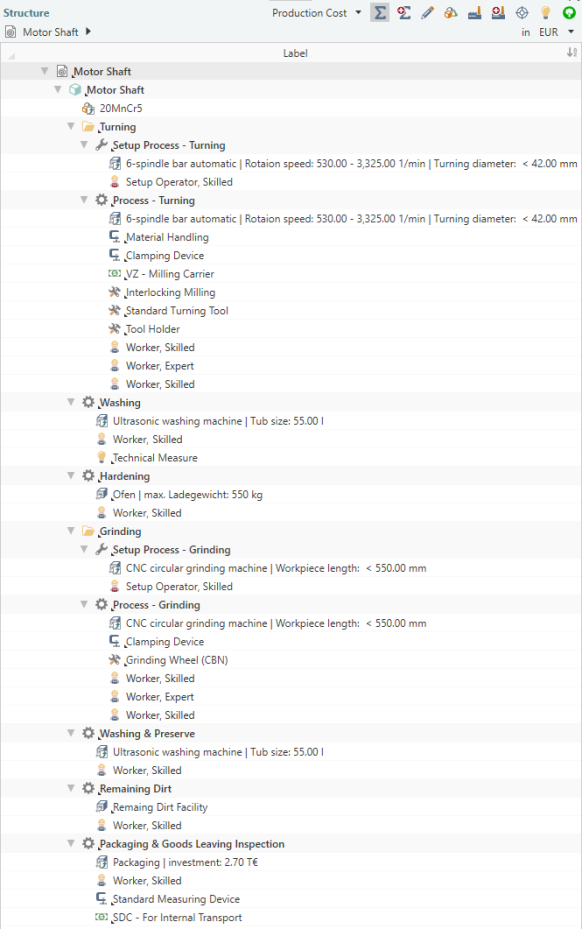
When you have correctly entered all data, check the Key Figures > Production Cost - Detailed view schema for the imputed sales price of 5.79 EUR / pc.
Shortcut: Excel template for importing bill of materials
Import Sub-Structure of a Calculation